
Mobile Coding Setup Optimizer
How ready is your phone for serious coding? Check off the items below to see your "Mobile Dev Readiness Score".
Optimization Checklist
Getting Started
Select items to update
Current Status:
Picture this: you are stuck on a crowded bus, waiting for a train, or lying in bed when a brilliant idea for an app strikes. In the past, you would have had to scribble it down and wait until you reached your laptop. Today, with modern smartphones, that barrier has vanished. The question isn't just "can" you code on a phone; it's whether you should. With processors rivaling older laptops and screens large enough to read syntax comfortably, mobile devices have evolved into legitimate development environments.
If you are looking to start coding classes or pick up a new language like Python or JavaScript, your pocket computer might be the perfect starting point. This guide breaks down exactly how to turn your smartphone into a coding machine, which apps actually work, and where the real limits lie.
Is it possible to build full applications on a phone?
Yes, but with caveats. You can write logic, debug scripts, and even deploy simple web apps using cloud-based IDEs. However, complex project management, heavy compilation, and multi-window debugging remain difficult on small screens.
The Reality of Mobile Coding in 2026
Let’s get straight to the point. Can you become a professional software engineer using only a phone? Probably not. But can you learn the fundamentals, complete beginner courses, and even build small projects? Absolutely. The hardware in flagship phones from 2025 and 2026 is powerful enough to handle local compilation for languages like C++, Java, and Python without breaking a sweat.
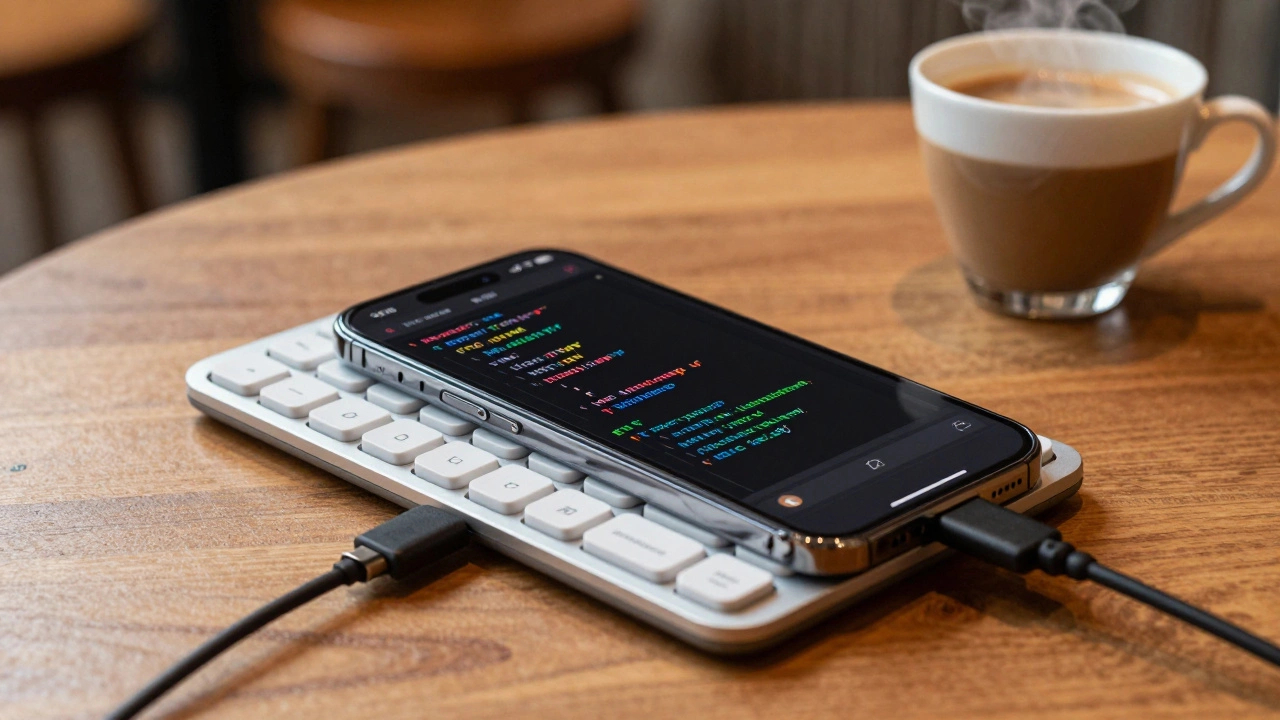
The main challenge isn't power; it's ergonomics. Typing special characters like curly braces `{}`, semicolons `;`, and brackets `[]` on a touchscreen is frustrating. Your fingers are larger than the keys, leading to typos that take longer to fix than they take to type. To make mobile coding viable, you need the right setup. Most serious mobile coders use one of two methods: a specialized keyboard app that adds a second row of symbols, or a cheap Bluetooth mechanical keyboard paired via USB-C or Lightning.
Another factor is screen real estate. Splitting your screen between code and output requires focus. Modern Android and iOS split-screen modes help, but they still feel cramped compared to a dual-monitor desktop setup. If you are serious about this, consider using your phone as a companion device rather than your primary workstation. Use it for learning concepts, practicing algorithms, and reviewing code while away from your desk.
Best Apps for Coding on Android
Android offers more flexibility because it allows deeper system access, making it easier to run local compilers. Here are the top contenders for turning your Android device into a dev environment.
AIDE (Android IDE) is a comprehensive integrated development environment designed specifically for Android users to create, edit, and compile Java and C++ projects locally. It supports HTML5, CSS3, and JavaScript as well. What makes AIDE stand out is its ability to compile native Android APKs directly on the device. You can write a simple calculator app, hit build, and install it on your phone immediately. It includes a debugger and auto-completion features that mimic desktop IDEs like IntelliJ IDEA.
For Python enthusiasts, Pydroid 3 is the most popular Python interpreter for Android, allowing users to run Python 3 code offline with support for pip packages. Unlike many other apps that rely on cloud servers, Pydroid runs code locally. This means no internet connection is required to execute scripts. It also supports graphical libraries like Turtle and Kivy, so you can build simple games or data visualizations right on your screen. The interface is clean, with a terminal at the bottom for immediate feedback.
If you prefer web development, TrebEdit is a lightweight yet powerful text editor focused on HTML, CSS, and JavaScript with a built-in browser preview. It feels fast and responsive. You can write a webpage, tap the play button, and see the result instantly. It also supports Git integration, allowing you to push your code to GitHub repositories directly from your phone. This is crucial if you want to maintain a portfolio while traveling.
Top Choices for iPhone and iPad Users
iOS is more restrictive due to Apple's sandboxing policies, but the available apps are often more polished. iPads, with their larger screens, are significantly better for coding than iPhones, especially when paired with the Magic Keyboard.
Koder is a robust source code editor for iOS that supports over 100 programming languages with syntax highlighting and file management. It doesn't compile code itself but serves as an excellent viewer and editor. You can connect it to iCloud, Dropbox, or FTP servers to manage files. For actual execution, you pair it with online interpreters or use it to edit files that you then run on a remote server.
For those who want a true IDE experience on iPad, Spyder IDE is a scientific Python development environment ported to iOS, offering variable explorers and plot viewers. It is particularly useful for data science students. If you are taking coding classes focused on data analysis, Spyder allows you to run Jupyter notebooks natively on your iPad. This is a game-changer for students who need to analyze datasets on the go.
Another strong option is Play.js, which is an interactive JavaScript playground that lets you write and execute JS code instantly with console output. It is perfect for learning web basics. The app provides examples and challenges, making it ideal for self-paced learning. You can test DOM manipulation, event listeners, and asynchronous functions without setting up a local server.
Cloud-Based IDEs: The Browser Solution
If you don't want to install multiple apps, cloud-based Integrated Development Environments (IDEs) are the best cross-platform solution. These run entirely in your mobile browser, meaning your phone doesn't need to do the heavy lifting. The server compiles the code and sends back the result.
| Platform | Best For | Offline Support | Mobile Experience |
|---|---|---|---|
| Replit | All-around learning, multiplayer coding | No | Excellent dedicated app with touch-optimized UI |
| GitHub Codespaces | Professional workflows, VS Code fans | Limited | Good via browser, requires stable Wi-Fi |
| CodeSandbox | React, Vue, Angular front-end projects | No | Clean interface, fast load times |
| JDoodle | Quick snippets, competitive programming | No | Minimalist, works well on small screens |
Replit is a cloud-based IDE that supports dozens of languages including Python, Node.js, Ruby, and C++, with social features for collaborative coding. Replit has a dedicated mobile app that transforms the experience. It includes a custom keyboard layout for coding, saving you from hunting for symbols. You can join public repls, fork projects, and even host bots that run 24/7 on their servers. For beginners joining coding classes, Replit removes the setup friction entirely. You open the app, choose a language, and start typing.
GitHub Codespaces is a cloud-hosted development environment based on Visual Studio Code, providing full VS Code functionality in a browser. If you already know VS Code, this feels familiar. It connects directly to your GitHub repositories. While there is no native app, the browser version is optimized for touch. It is heavier than Replit but more powerful for complex projects. You get a full Linux container in the cloud, so you can install any package or tool you need.
How to Optimize Your Phone for Coding
To make mobile coding less painful, you need to tweak your settings and workflow. Here is a practical checklist to improve your experience:
- Enable Dark Mode: Coding involves long sessions staring at text. Dark themes reduce eye strain and save battery life on OLED screens.
- Use a Symbol Keyboard: Apps like Hacker's Keyboard (Android) or Fleksy (iOS/Android) add function keys, arrows, and symbols to your keyboard. This cuts down on switching between keyboards constantly.
- Turn on Auto-Correct Off: Standard auto-correct will mangle your variable names. Disable it for coding apps specifically. Most good coding apps have their own syntax-aware auto-complete instead.
- Connect a Mouse: Yes, you can use a mouse with your phone via OTG (On-The-Go) cable or Bluetooth. Navigating through code with a cursor is much faster than tapping and scrolling.
- Use Voice Typing for Comments: Writing comments and documentation is tedious on a phone. Use voice-to-text for descriptive text, then switch to manual typing for code.
Limitations You Must Accept
It is important to be realistic. Mobile coding is not a replacement for a desktop or laptop. Here is what you will struggle with:
Debugging Complex Errors: When an error occurs, stack traces can be long. Reading them on a 6-inch screen is exhausting. You might miss critical details because you have to scroll horizontally and vertically. Simple syntax errors are fine, but logical bugs in large programs are hard to trace.
Project Management: Handling multiple files, folders, and dependencies is clunky. File managers on phones are not designed for navigating deep directory structures of a web application. You will find yourself spending more time organizing files than writing code.
Performance Limits: While modern phones are fast, they throttle performance to prevent overheating. Long-running processes, such as training a machine learning model or compiling a large C++ project, may slow down or crash. Cloud IDEs solve this by offloading the work, but they require a reliable internet connection.
Who Should Code on Their Phone?
This approach is ideal for specific groups of people. First, absolute beginners who want to practice daily habits. If you commit to writing 10 lines of code every day, doing it on your phone during commute time is easier than waiting for evening hours at your desk. Consistency beats intensity.
Second, students in coding classes who need to review material. Flashcards and interactive quizzes are great, but actually typing out the solutions reinforces memory. Using an app like Sololearn or Mimo alongside a code editor helps bridge the gap between theory and practice.
Third, travelers and digital nomads with limited gear. If you are backpacking and only carrying a phone, you can still contribute to open-source projects, fix bugs, or write blog posts. It keeps you productive when you cannot carry a laptop.
However, if you are preparing for technical interviews that require whiteboarding or solving complex algorithmic problems under time pressure, practice on a physical keyboard. Muscle memory matters. The tactile feedback of a mechanical keyboard helps you type faster and more accurately, which is crucial in timed assessments.
Getting Started: Your First Week Plan
If you decide to try mobile coding, here is a simple plan to start effectively:
- Day 1-2: Setup. Install a code editor (AIDE or TrebEdit for Android, Koder for iOS). Connect a Bluetooth keyboard if possible. Configure your theme and font size.
- Day 3-4: Basics. Write simple "Hello World" programs in Python or JavaScript. Focus on getting comfortable with the keyboard layout and finding symbols.
- Day 5-6: Small Project. Build a basic calculator or a to-do list app. This forces you to handle variables, functions, and user input.
- Day 7: Review. Reflect on what was frustrating. Was it the keyboard? The screen size? Adjust your setup accordingly. Consider trying a cloud IDE like Replit if local apps felt too limiting.
Remember, the goal is not to replace your computer but to extend your coding life into moments you previously wasted. Every line of code written on a phone builds confidence and skill. Start small, be patient with the interface, and enjoy the freedom of coding anywhere.
Which phone is better for coding: iPhone or Android?
Android is generally better for local coding due to fewer restrictions on running compilers and installing custom keyboards. iPhones offer more polished apps but rely heavily on cloud services or limited local interpreters. iPads are superior to both phones due to screen size and multitasking capabilities.
Can I learn Python on my phone?
Yes, absolutely. Pydroid 3 on Android and Pythonista on iOS allow you to run Python scripts locally. You can install libraries via pip in Pydroid. For learning, combine these editors with online tutorials or apps like SoloLearn.
Do I need a keyboard to code on my phone?
Not strictly necessary, but highly recommended. Touchscreen keyboards lack the precision needed for frequent symbol entry. A Bluetooth keyboard or a specialized app like Hacker's Keyboard significantly improves speed and accuracy.
Is Replit free for mobile users?
Replit offers a generous free tier that includes basic hosting and unlimited public repls. Private projects and advanced CPU resources require a paid subscription. For beginners, the free version is sufficient for learning and small projects.
Can I deploy a website from my phone?
Yes. Using cloud IDEs like Replit or GitHub Codespaces, you can push code to GitHub Pages, Netlify, or Vercel. Many deployment platforms have mobile-friendly dashboards or CLI tools accessible through terminal apps on your phone.